

Learn how to connect TikTok Shop to teelaunch, authorize your store connection and start preparing your print-on-demand products for TikTok Shop.
Once your TikTok Shop store is connected, you can manage the store connection through Launchpad and begin preparing products for your TikTok Shop audience. This helps bring your print-on-demand workflow into one place, so you can spend less time switching between platforms and more time building your store.
In this guide, we’ll walk through how to connect TikTok Shop to Launchpad step by step, from finding the TikTok Shop integration inside Launchpad to authorising the connection through TikTok Shop Seller Center.
This guide is ideal for TikTok Shop sellers, creators, side hustlers and small businesses who want to connect their store to teelaunch and start preparing print-on-demand products for TikTok Shop.
Note: This guide focuses on connecting an existing TikTok Shop store to teelaunch. It does not cover the full process of opening a new TikTok Shop seller account.
Before You Connect TikTok Shop to teelaunch
Before you finalise your TikTok Shop connection, there are a few important setup steps to complete.
You will need to confirm that:
- You have set up your teelaunch Warehouses
- You have selected the Seller Shipping option
- You have set up your Shipping Template
These steps help make sure your TikTok Shop store is ready to connect correctly to teelaunch.
Setting up your teelaunch warehouses
TikTok needs to know where your goods are coming from so they require that you set up your warehouses before you can start selling.
First, head on over to TikTok Shop’s Seller Center., you can follow this link which will take you directly to the Warehouse Settings.
Then create your Pickup Warehouse and Return Warehouse with the following information:
teelaunch
808 N West Ave
Sioux Falls, SD 57104
Setting up your Shipping Settings
One more task you have other complete before you can start selling is to set up your shipping information.
First you need to tell TikTok that we’re going to ship the items for you. To do that go to TikTok Shop’s Seller Center and navigate to the Orders —> Shipping Options screen.
This link will take you directly there, click the “Select” button under the “Seller shipping” heading.
Setting up Shipping Template
Setting up shipping rates in TikTok can be kinda difficult so we found it just to be easier to build the shipping price into the product price and offer free shipping on all products.
To set up your shipping template head on over to TikTok Shop’s Seller Center and navigate to the Orders —> Shipping Templates screen.
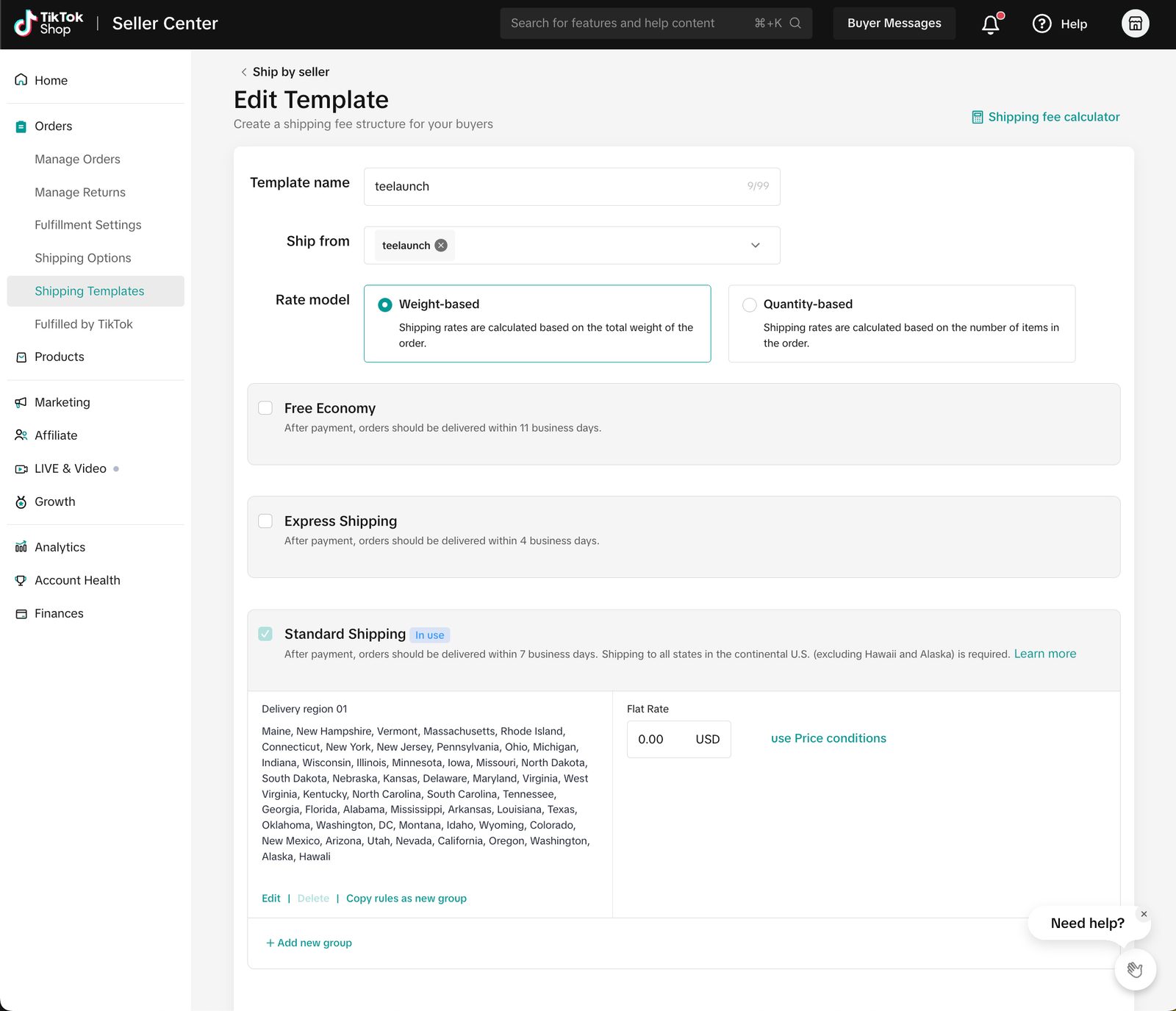
This link will take you directly there. Set up your template like above. The important bits are setting the ship from as the teelaunch warehouse and changing the shipping rate to free.
Step 1: Go to Stores in Launchpad
To begin, log in to teelaunch and go to the Stores section in Launchpad.
This is where you can view your active store connections and add new stores to your teelaunch account.
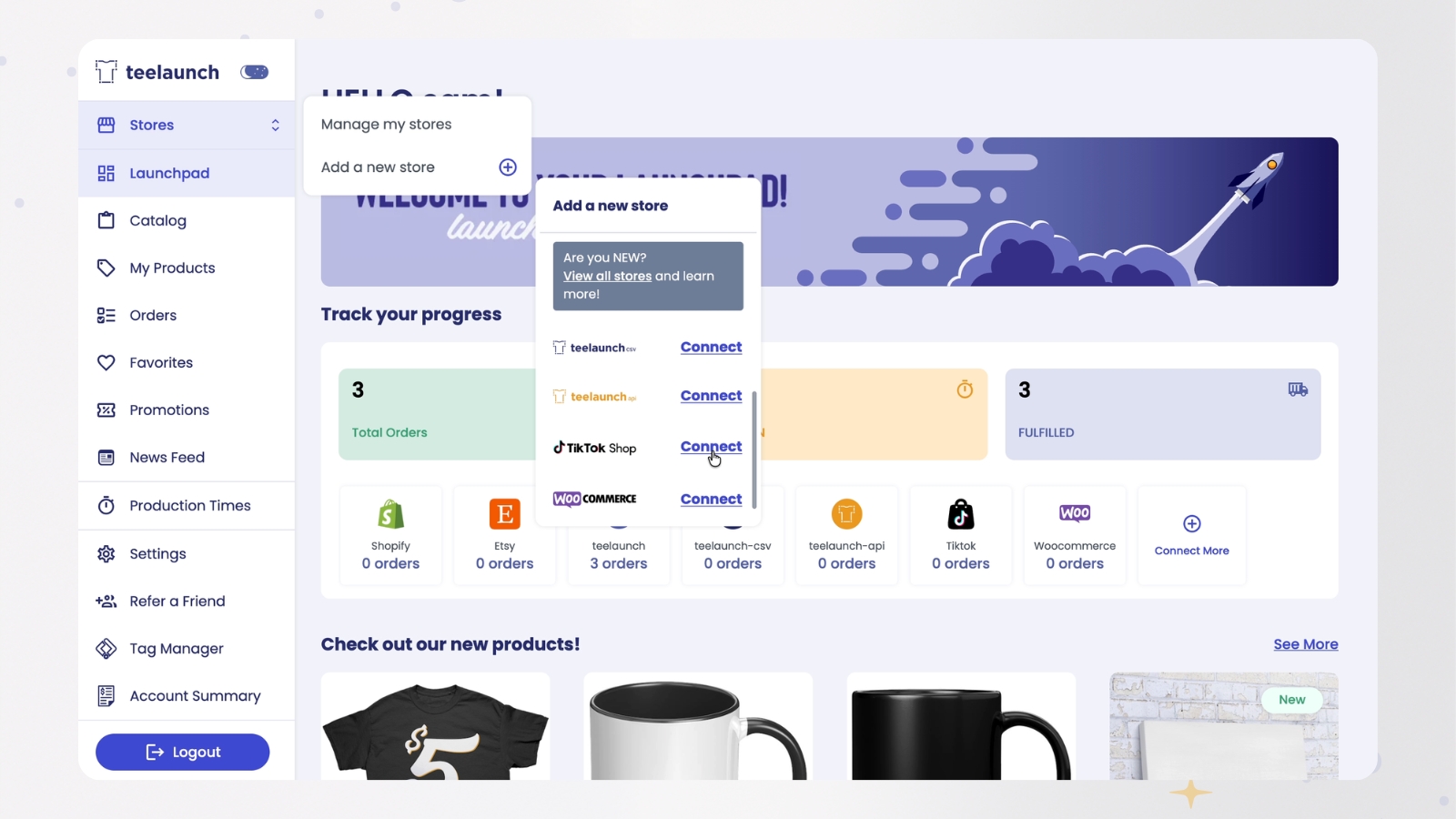
Step 2: Select Add New Store
From the Stores section, click Add New Store.
You will now see the available store integrations that can be connected to teelaunch.
Step 3: Locate TikTok Shop
Find TikTok Shop from the list of available store options.
Once you have located TikTok Shop, click Connect.
This will begin the TikTok Shop integration process and redirect you to TikTok Shop Seller Center.
Step 4: Check Your TikTok Shop Store Details
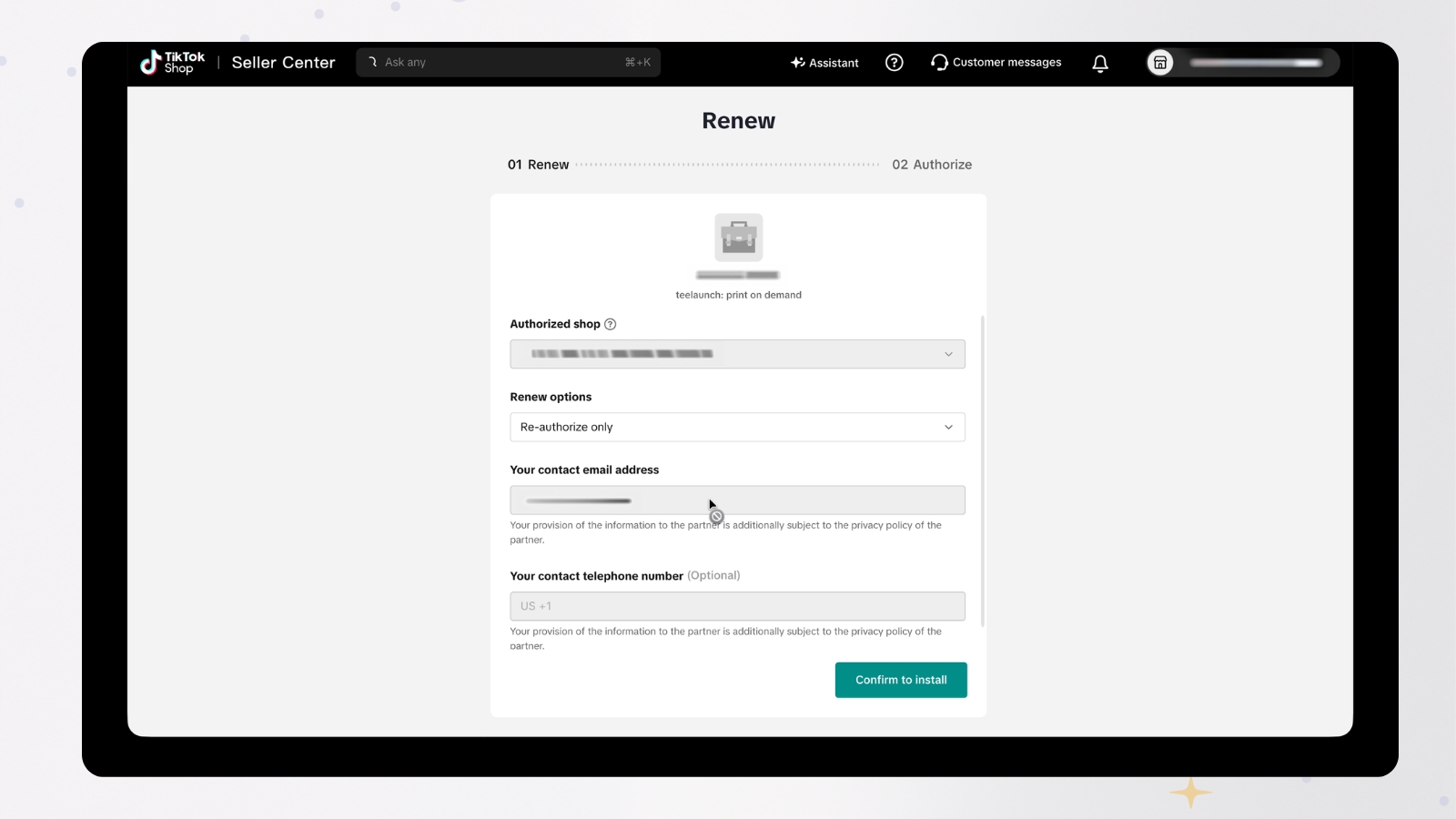
After you click Connect, teelaunch will redirect you to TikTok Shop Seller Center.
Before continuing, check that the authorised store is correct. You should also review your personal details to make sure everything is accurate.
Once you have checked the details, continue with the installation process.
Step 5: Confirm the Installation
TikTok Shop Seller Center will ask you to confirm the app installation.
Review the information shown on screen. If everything looks correct, confirm the installation to continue.
Step 6: Authorize the TikTok Shop Connection
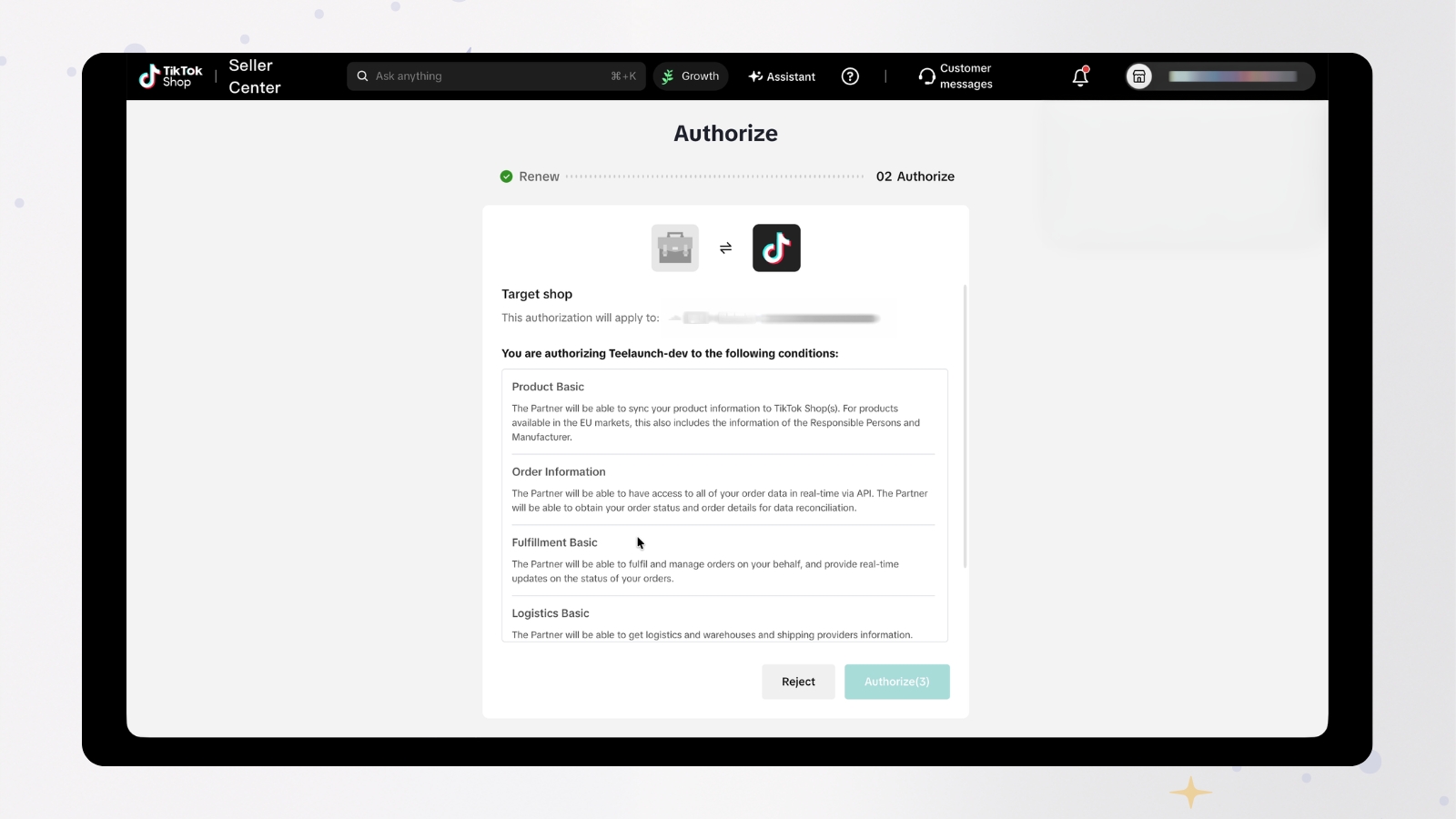
Next, TikTok Shop will ask you to authorize the connection conditions.
Take a moment to review the permissions and conditions shown. If you agree, click Authorize.
This gives teelaunch permission to connect with your TikTok Shop store.
Step 7: Return to teelaunch
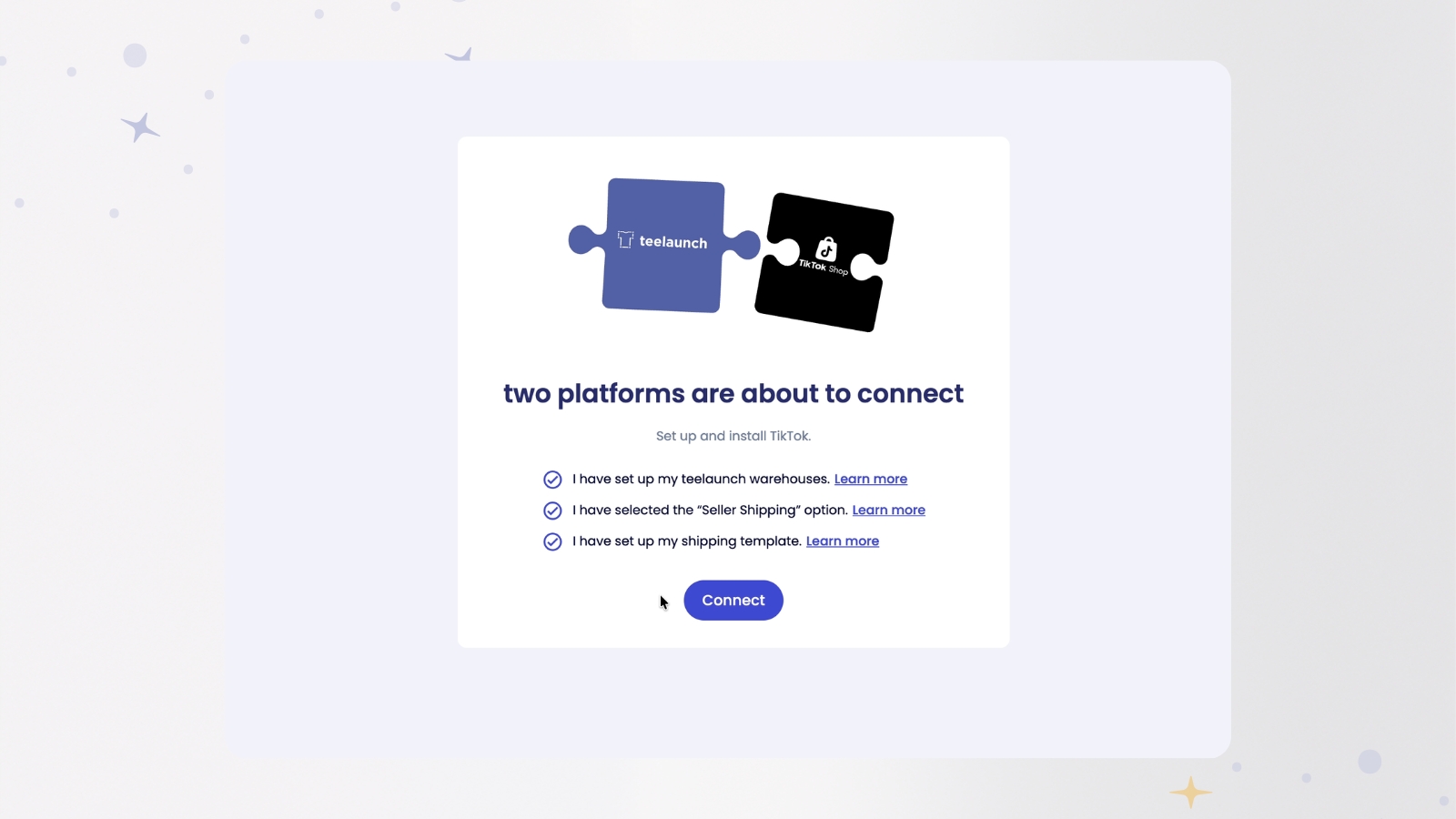
After you authorize the connection, teelaunch will redirect you back to the app.
From here, you can finalise the TikTok Shop connection.
Before completing this step, you will need to confirm that you have completed the required TikTok Shop setup steps, including your teelaunch warehouses, Seller Shipping option and shipping template.
Step 8: View Your TikTok Shop Store in Active Stores
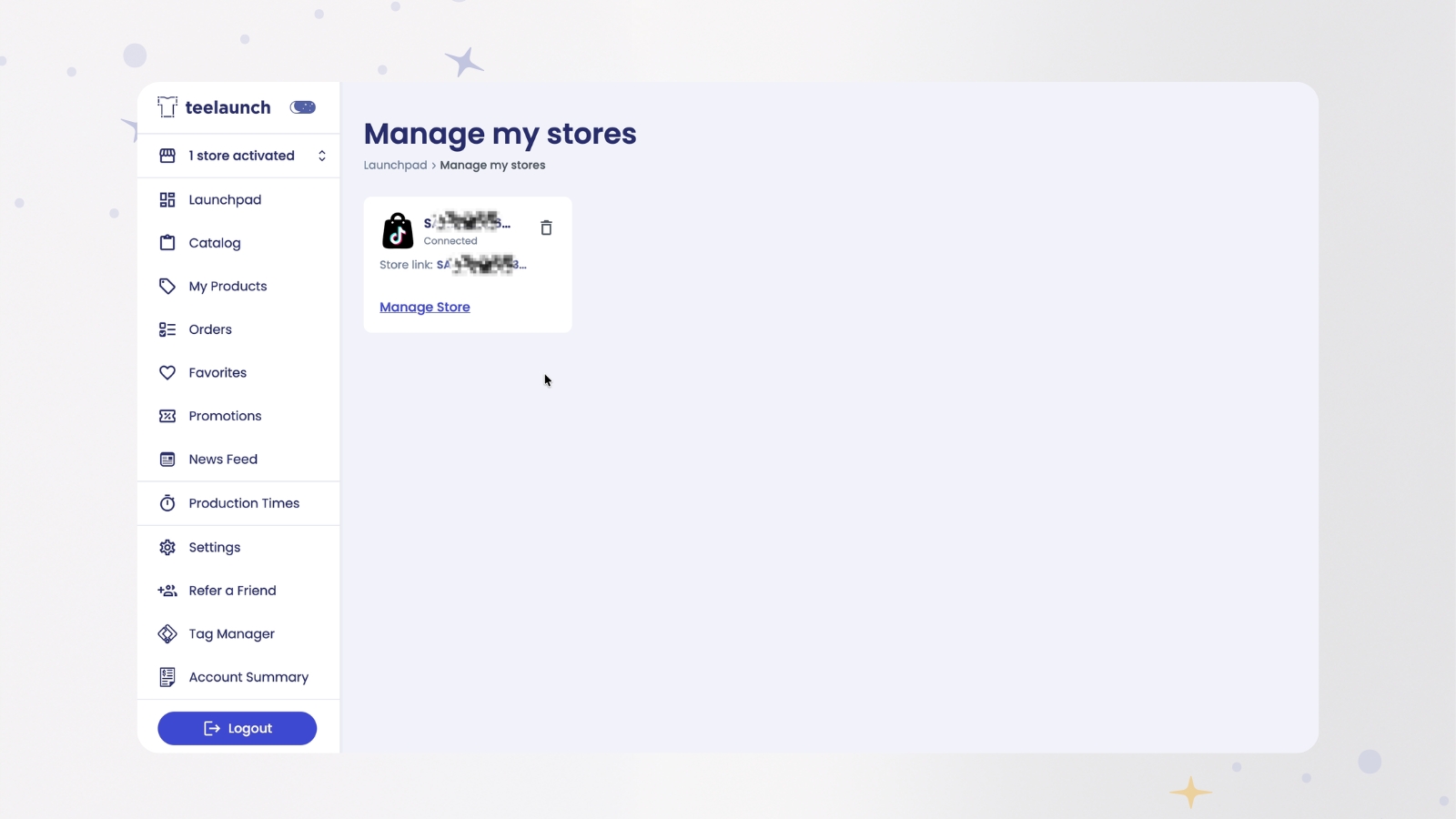
Once you confirm the connection, your TikTok Shop store will appear in your active stores inside Launchpad, confirming that your TikTok Shop has been successfully added.
You can now begin preparing your print-on-demand products for your TikTok Shop store through Launchpad.
Why Connect TikTok Shop to teelaunch?
Connecting TikTok Shop to teeluanch helps bring your store setup into one place, making it easier to manage your print-on-demand products and prepare them for selling through TikTok Shop.
For sellers using TikTok Shop as part of their ecommerce strategy, this connection can help simplify the setup process and create a smoother workflow between your store and teelaunch.
Instead of managing every step separately, teelaunch gives you a clearer way to connect your store and prepare your products for your TikTok Shop audience.
Final Thoughts
Learning how to connect TikTok Shop to teelaunch only takes a few steps but it is important to check the right details along the way.
Start by going to Stores in Launchpad, select Add New Store, choose TikTok Shop and authorise the connection through TikTok Shop Seller Center.
Once you return to your Launchpad and complete the required setup confirmations, your TikTok Shop store will appear in your active stores.
From there, you can start preparing products for your TikTok Shop audience through teelaunch.
Do I need a TikTok Shop account before connecting to Launchpad?
Yes. This guide is for sellers who already have a TikTok Shop seller account and want to connect it to Launchpad.
Where do I connect TikTok Shop in Launchpad?
Go to the Stores section in Launchpad, select Add New Store, locate TikTok Shop and click Connect.
Why am I redirected to TikTok Shop Seller Center?
TikTok Shop Seller Center is where you review your store details, confirm installation and authorise the connection between TikTok Shop and teelaunch.
What do I need to set up before finalising the connection?
How do I know if my TikTok Shop store is connected?
Once the connection is complete, your TikTok Shop store will appear in the active stores section inside Launchpad.
Can you use print on demand with TikTok Shop?
Yes, TikTok Shop can be used with print-on-demand apps. Print-on-demand lets sellers offer custom products without holding inventory, with production and fulfilment handled after an order is placed. This can make it easier to test product ideas and sell custom products through TikTok Shop.
Do I need to hold inventory to sell print-on-demand products on TikTok Shop?
No. With print on demand, products are usually made after a customer places an order, so you do not need to buy stock upfront or store products yourself. This makes it a useful option for creators, side hustlers and small businesses who want to sell custom products with lower upfront risk.

From Thomas, teelaunch’s Chief Vision Officer