

If you want to start selling print-on-demand products through Shopify, the first step is connecting your Shopify store to teelaunch. In this post we will show you How to Connect teelaunch to Shopify. A no fuss guide.
Once your store is connected, you can create products in teelaunch and send them directly to Shopify, where customers can view and buy them through your online store.
In this guide, we’ll walk through how to connect teelaunch to Shopify step by step, from finding the teelaunch app to checking your first product inside Shopify.
This guide is ideal for beginners, creators, side hustlers and small business owners who want to start selling custom products without holding stock.
Note: Shopify and teelaunch may update their layouts from time to time, so the exact screens may look slightly different. However, the overall process should be similar.
Before you start
Before connecting teelaunch to Shopify, you’ll need:
- A Shopify account
- Access to your Shopify admin
- A teelaunch account, or the ability to sign in through Shopify
- A product or design you want to test, if you are ready to create your first product
You do not need to have a full product range ready. If you are just getting started, one test product is enough.
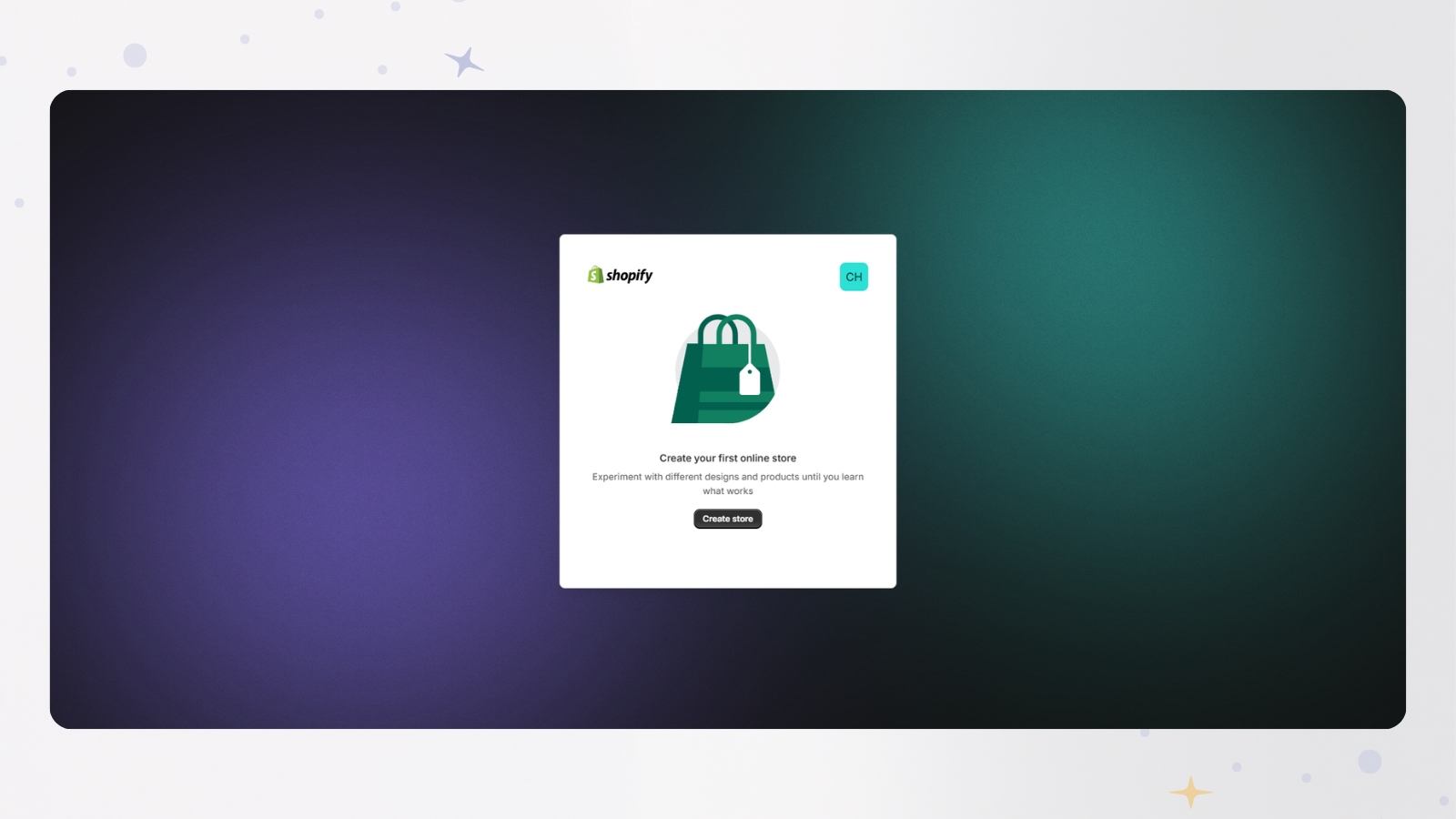
Step 1: Sign up to Shopify
Start by signing in to your Shopify account or create one .
Once you are logged in, you should be taken to your Shopify admin. This is where you manage your store, products, apps, orders and settings.
Step 2: Search for the teelaunch app
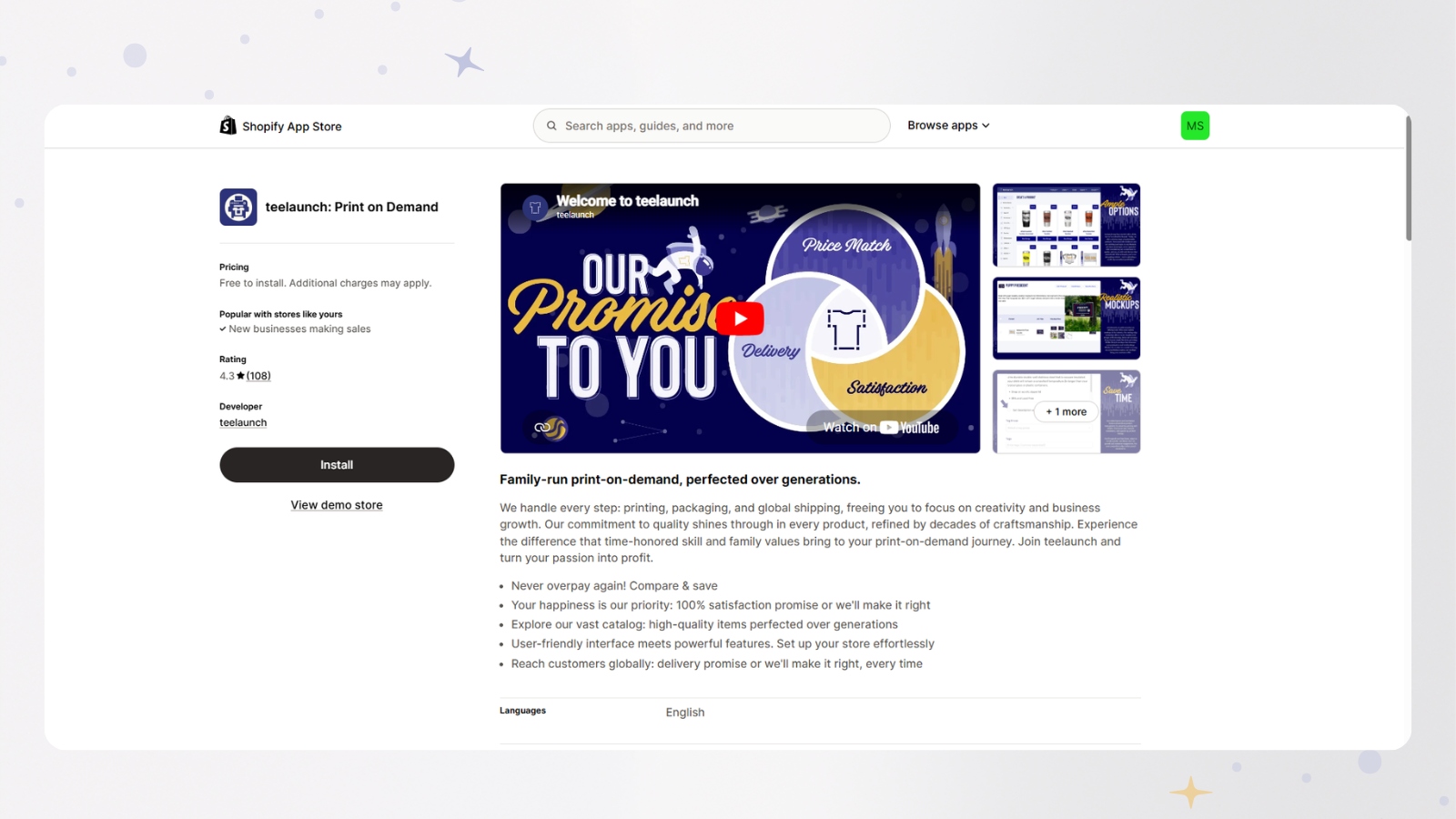
Next, go to the Shopify App Store and search for teelaunch.
The teelaunch app allows you to connect your Shopify store with teelaunch, so you can create and publish print-on-demand products.
Step 3: Install the teelaunch app
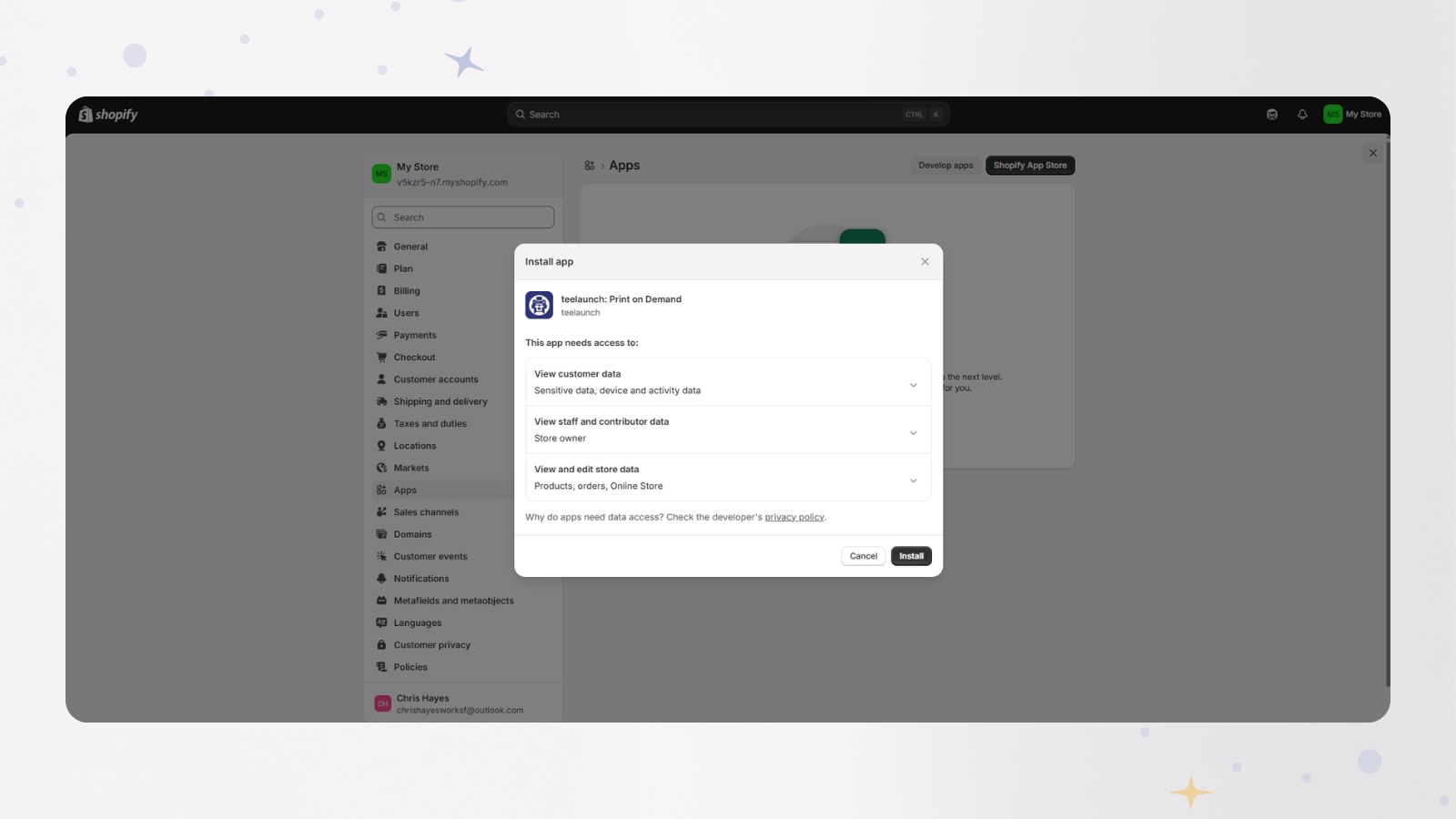
Once you find the teelaunch app, open the app listing and choose the option to install it.
Shopify may ask you to review the app permissions before continuing. Follow the prompts to approve the installation.
This allows teelaunch and Shopify to connect, so products created in teelaunch can be sent to your Shopify store.
Step 4: Sign in to teelaunch through Shopify
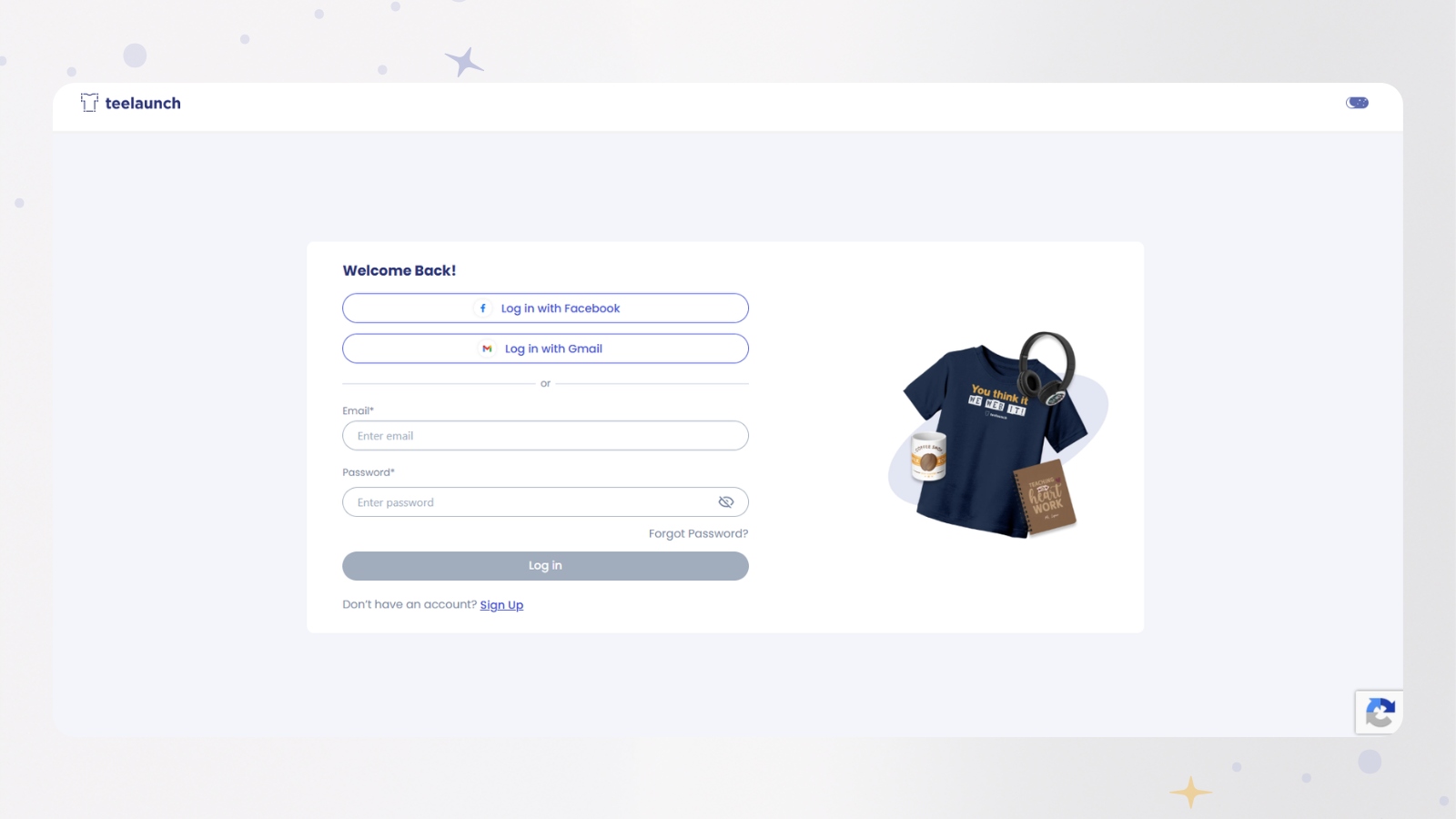
After installing the app, you’ll be prompted to sign in to teelaunch.
If you already have a teelaunch account, sign in using your existing details. If you are new to teelaunch, follow the steps to create or access your account through Shopify.
This step links your Shopify setup with your teelaunch account:
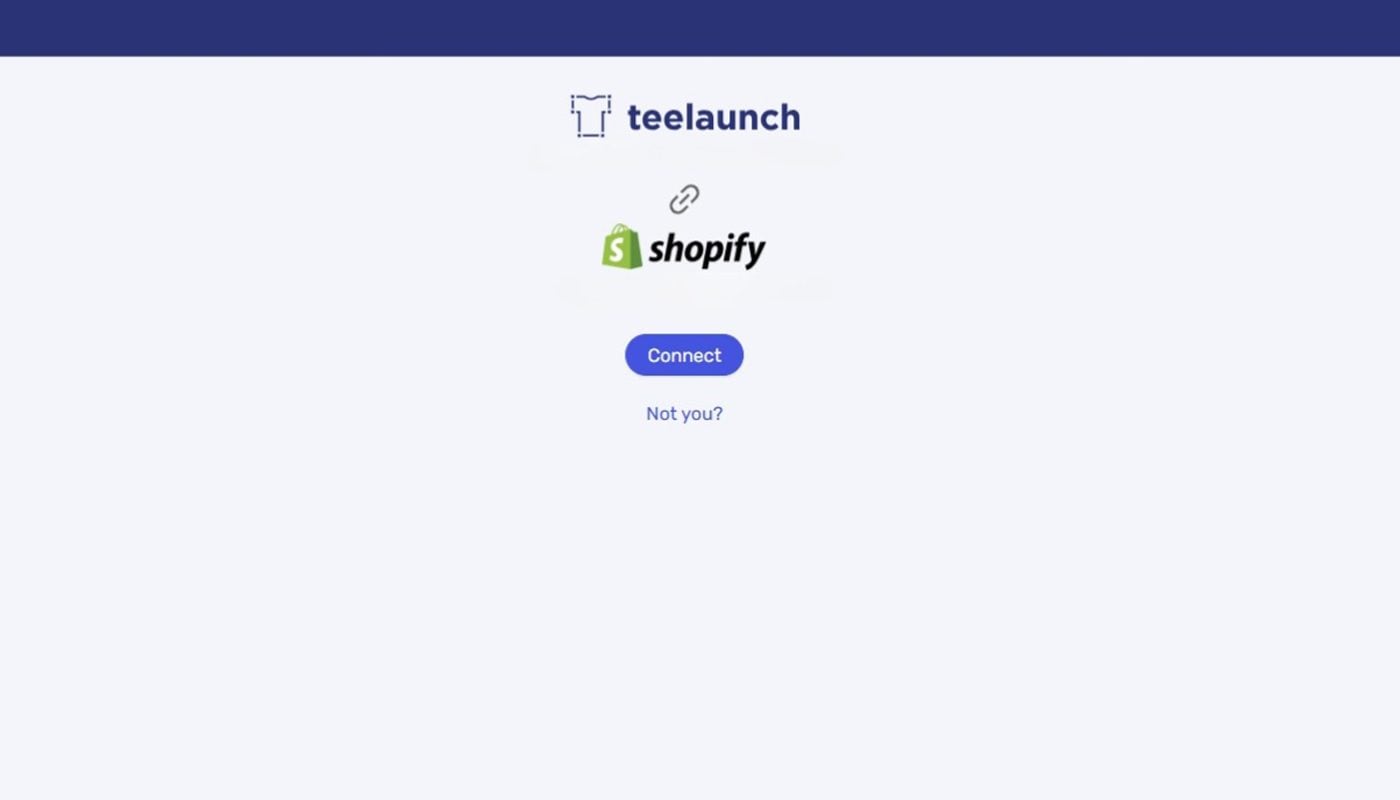
Step 5: Connect your Shopify store to teelaunch
Once you have signed in, follow the prompts to connect your Shopify store to teelaunch.
When the connection is complete, your store should appear inside teelaunch. This confirms that teelaunch and Shopify are linked.
At this point, you are ready to create products and send them to your Shopify store.
Step 6: Create or choose a product in teelaunch
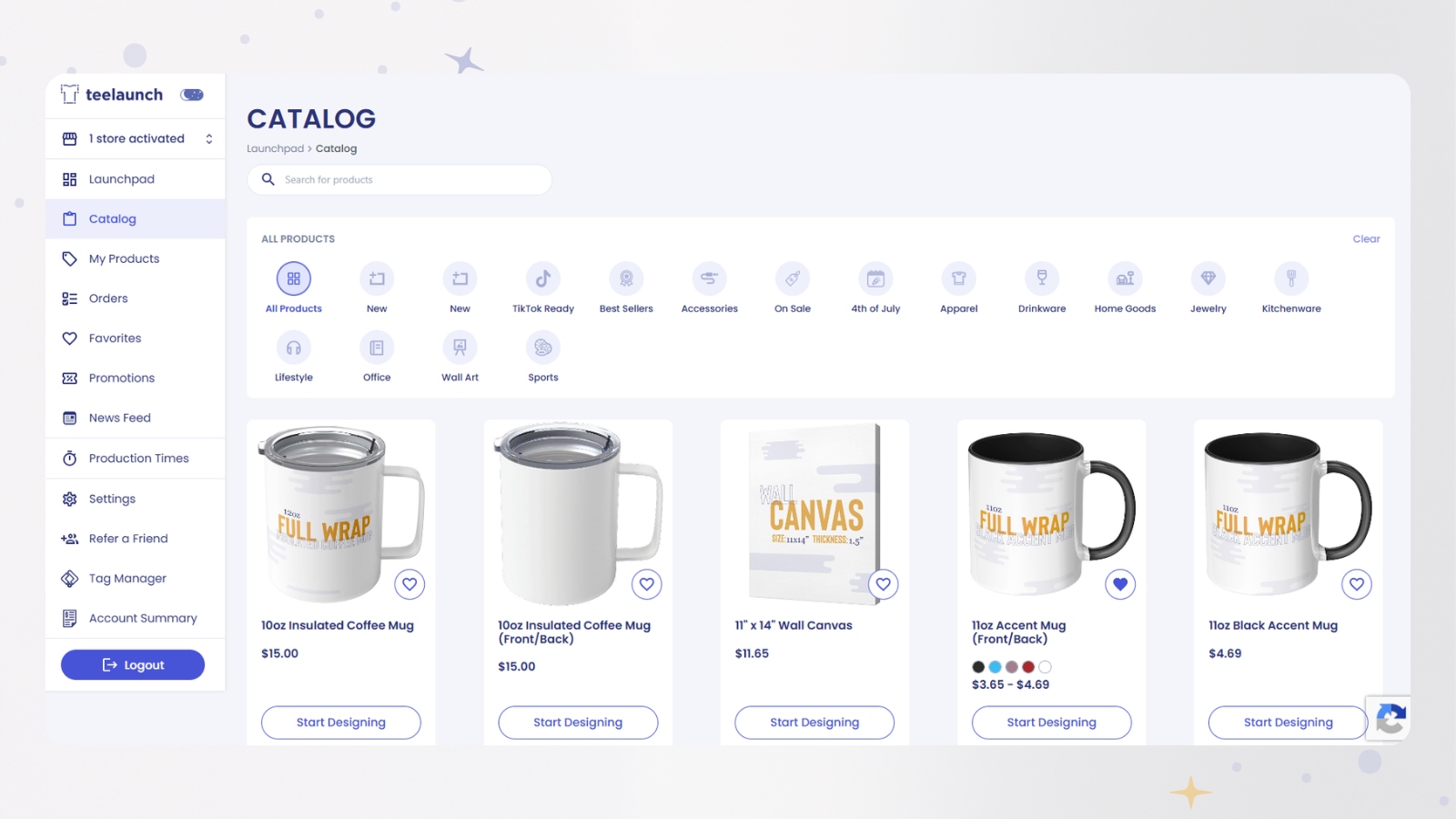
Now that your store is connected, you can create your first product in teelaunch.
Choose the product you want to sell, such as a t-shirt, and add your design. Before sending the product to Shopify, check that everything looks correct.
Review:
- Product type
- Design placement
- Product colours
- Product title
- Product description
- Pricing
- Mockup images
If this is your first product, keep it simple. One strong design on one product is enough to test the process.
Step 7: Send your product to Shopify
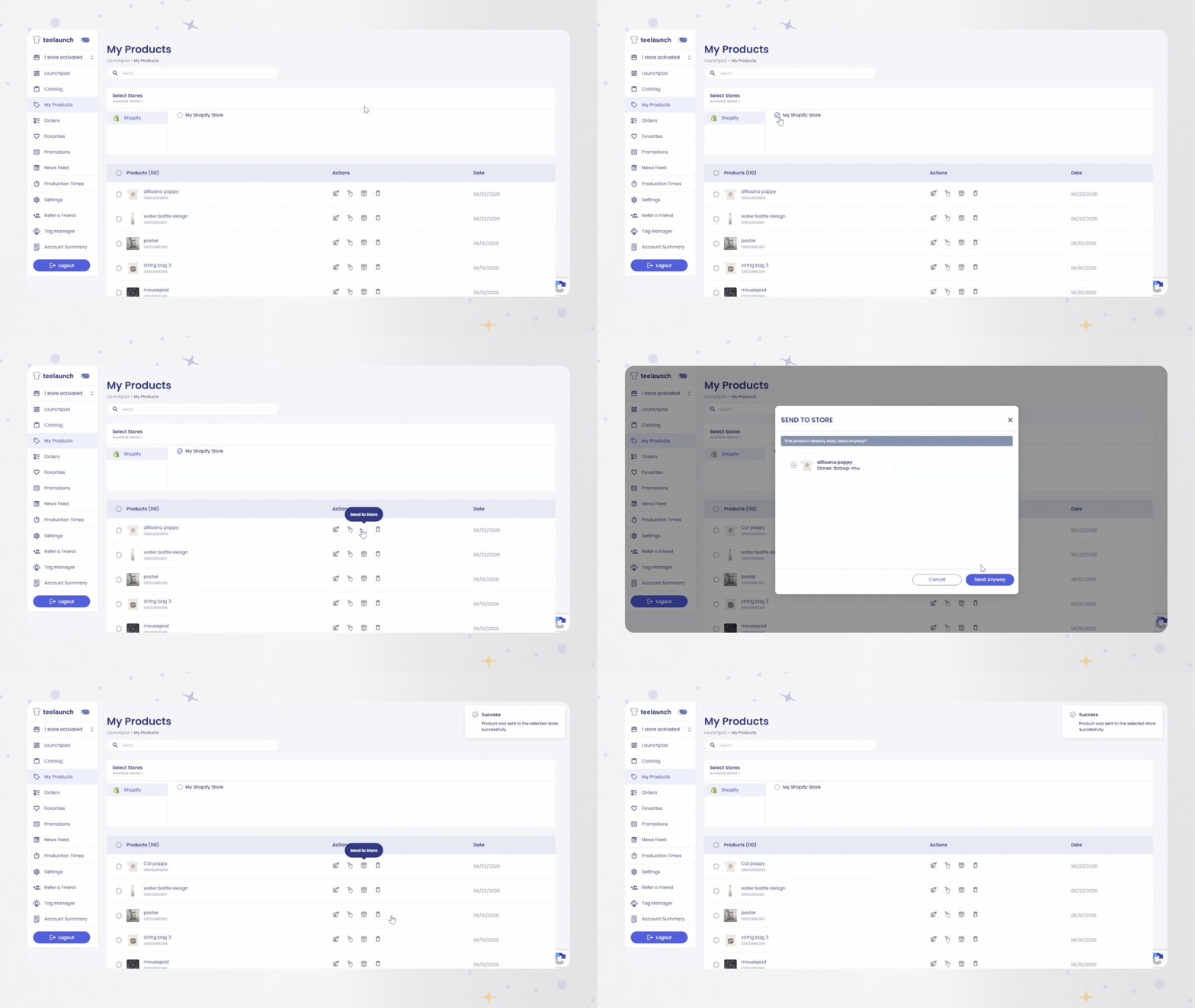
Once your product is ready, send or publish it to your Shopify store through teelaunch.
This step pushes the product information from teelaunch into Shopify, including the product details and images.
After the product has been sent, you should be able to find it inside your Shopify admin.
Step 8: Check your product in Shopify
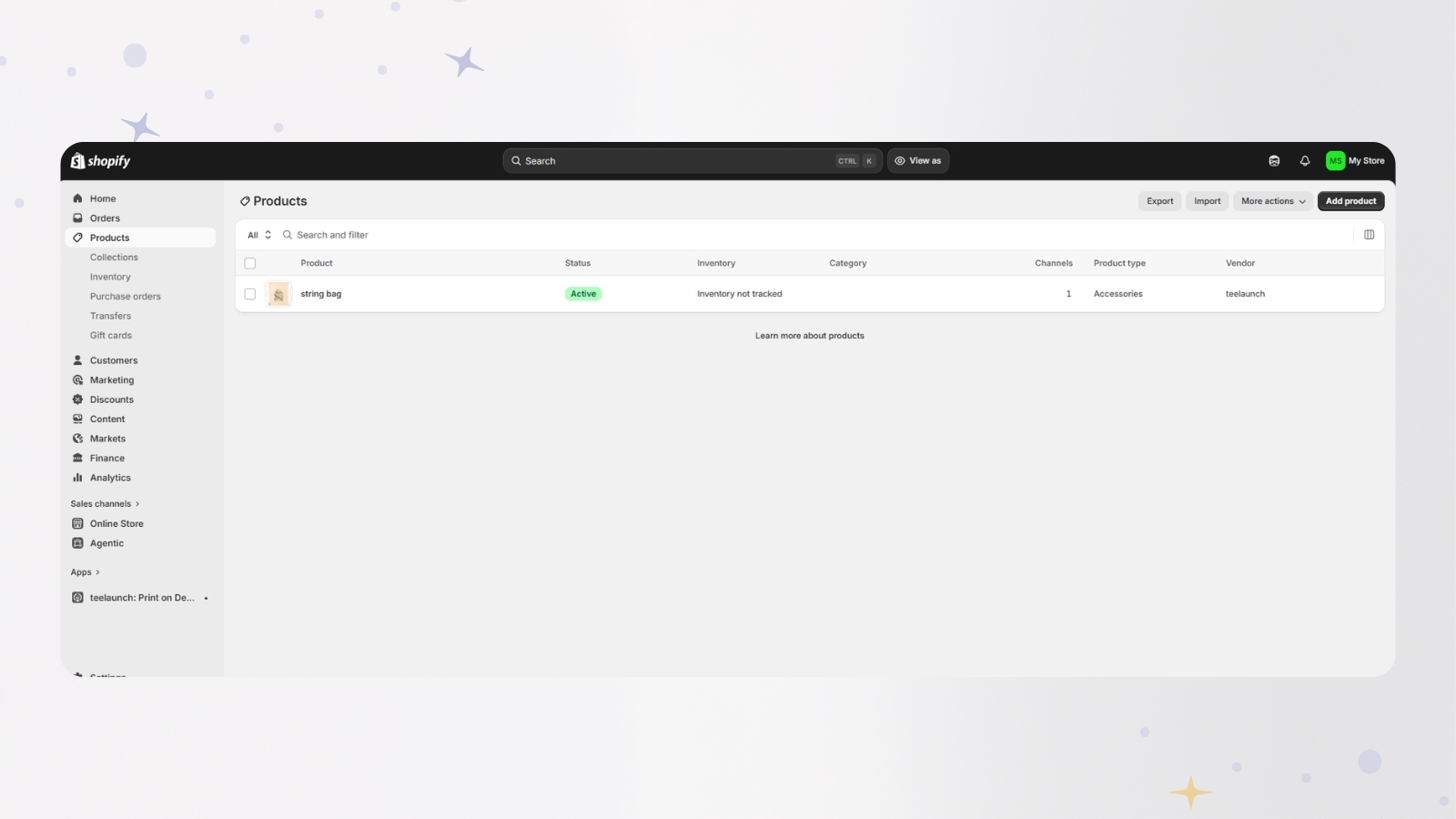
Go back to your Shopify admin and open your products area.
You should now see the product you created in teelaunch listed inside Shopify. Open the product and check the details before making it available to customers.
Check:
- Product title
- Description
- Images
- Variants
- Price
- Product status
- Sales channels
- Shipping details
Once everything looks correct, you can continue preparing your store for launch.Screenshot placeholder
What happens after you connect teelaunch to Shopify?
Once teelaunch and Shopify are connected, you can use teelaunch as your print-on-demand supplier for products in your Shopify store.
The basic process is:
- Create your product in teelaunch.
- Send the product to Shopify.
- Customers buy the product through your Shopify store.
- The order is produced and fulfilled through teelaunch.
This means you do not need to hold stock or manage printing yourself. You can focus on creating products, building your store and promoting your brand.
Common questions
Do I need a Shopify store before using teelaunch?
Yes, if you want to sell through Shopify, you’ll need a Shopify store first. Once your store is set up, you can install the teelaunch app and connect the two platforms.
Do I need to hold stock with Shopify?
No. With print on demand, products are created when an order is placed. This means you do not need to order large quantities of stock upfront.
Can I send products from teelaunch to Shopify?
Yes. Once your Shopify store is connected to teelaunch, you can create products in teelaunch and send them to your Shopify store.
Should I launch lots of products straight away?
If you are new to print on demand, it is usually better to start with one or two products. This makes it easier to test your ideas, check your setup and learn how the process works.
Ready to connect teelaunch to Shopify?
Connecting teelaunch to Shopify is the first step towards selling print-on-demand products through your own online store.
Start by installing the teelaunch app from Shopify, connect your store, create your first product and check that it appears correctly inside Shopify.
From there, you can start building your product range one item at a time.

From Thomas, teelaunch’s Chief Vision Officer