
Learn how to connect your Etsy shop to teelaunch, authorise the store connection and start preparing print-on-demand products for your Etsy store.
Once your Etsy shop is connected, you can create products in teelaunch and prepare them for your Etsy store. This makes it easier to sell custom products without holding stock or managing production yourself.
In this guide, we’ll walk through how to connect your Etsy shop to teelaunch step by step, from logging in to teelaunch to authorising the connection through Etsy.
This guide is ideal for Etsy sellers, creators, side hustlers and small businesses who want to start selling print-on-demand products through an existing Etsy shop.
Note: This guide focuses on connecting an Etsy shop to teelaunch. It does not cover the full process of opening a new Etsy seller account. If you are still setting up your Etsy shop, you may need to complete Etsy’s own seller setup steps before you can start selling.
Before you start
Before you start to connect your Etsy shop to teelaunch, you’ll need:
- A teelaunch account
- Access to your Etsy account
- An Etsy shop
- Permission to authorise apps or store connections on your Etsy account
- A product or design you want to test, if you are ready to create your first listing
You do not need to have a full product range ready. If you are just getting started, one test product is enough.
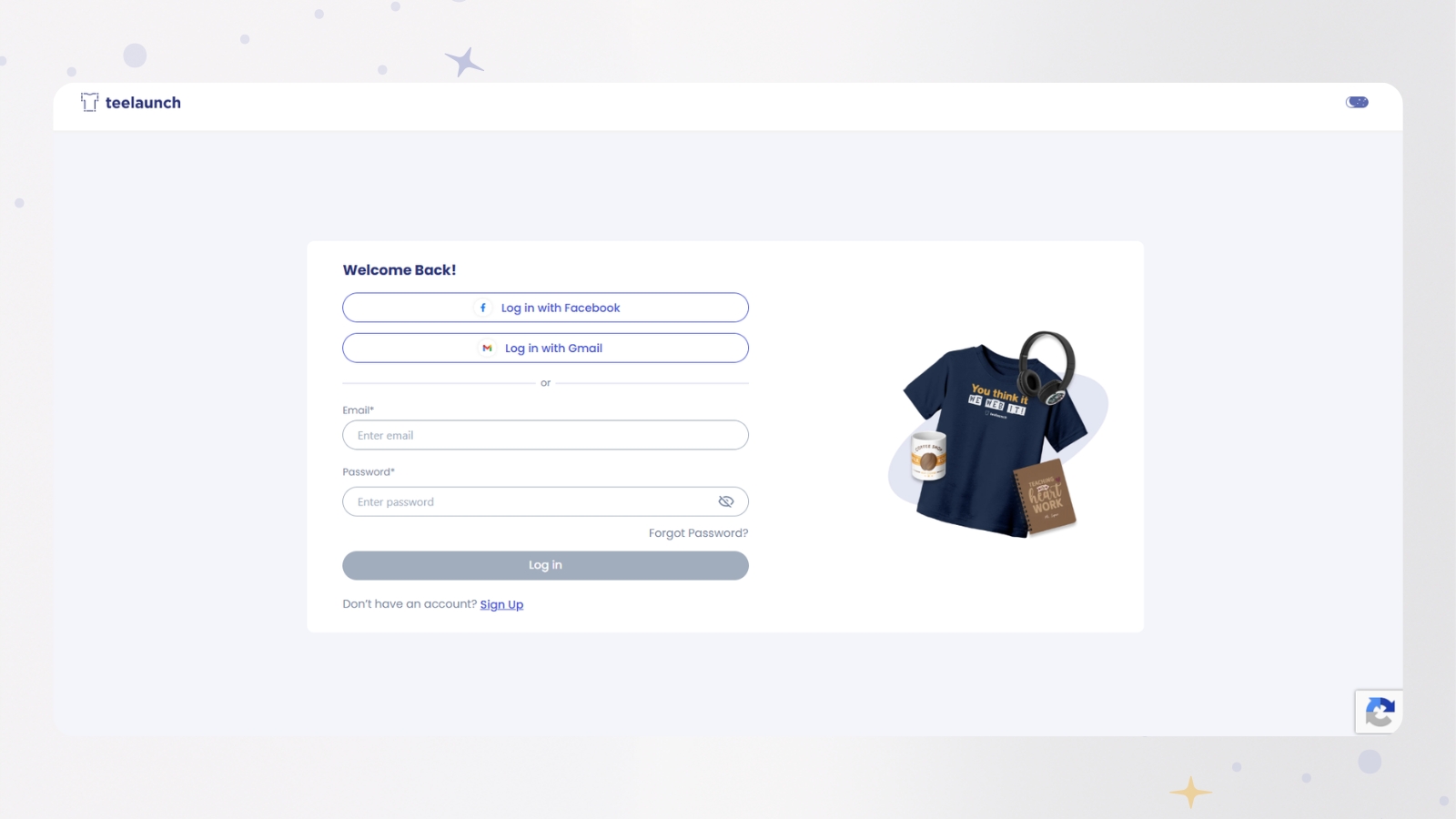
Step 1: Create or log in to your teelaunch account
Start by logging in to your teelaunch account.
If you do not already have an account, create one first. Once you are logged in, you should be taken to your teelaunch dashboard.
This is where you can manage your products, stores and connected sales channels.
Step 2: Go to the Stores section
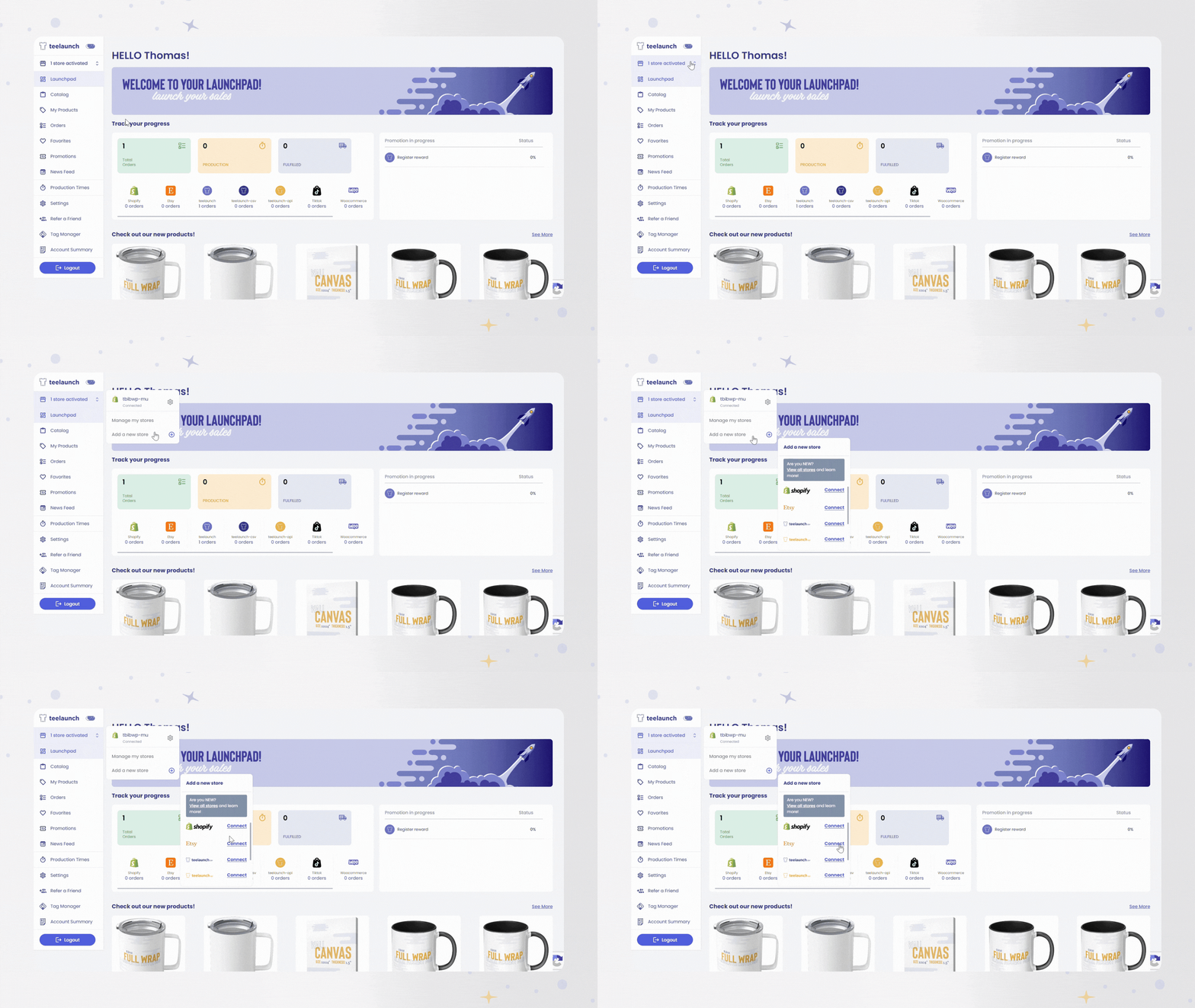
From your teelaunch dashboard, go to the Stores section.
This is where you can manage your connected stores and add a new store connection.
Step 3: Click Add New Store
In the Stores section, click the Add New Store button.
This will bring up the available store connections inside teelaunch.
Step 4: Choose Etsy and click Connect
After clicking Add New Store, you should see the available store options.
Find Etsy and click Connect.
This tells teelaunch that you want to connect an Etsy shop to your account.
Before continuing, make sure you are logged in to the correct Etsy account, especially if you manage more than one shop or use different accounts for personal and business activity.
Step 5: Authorise teelaunch in Etsy
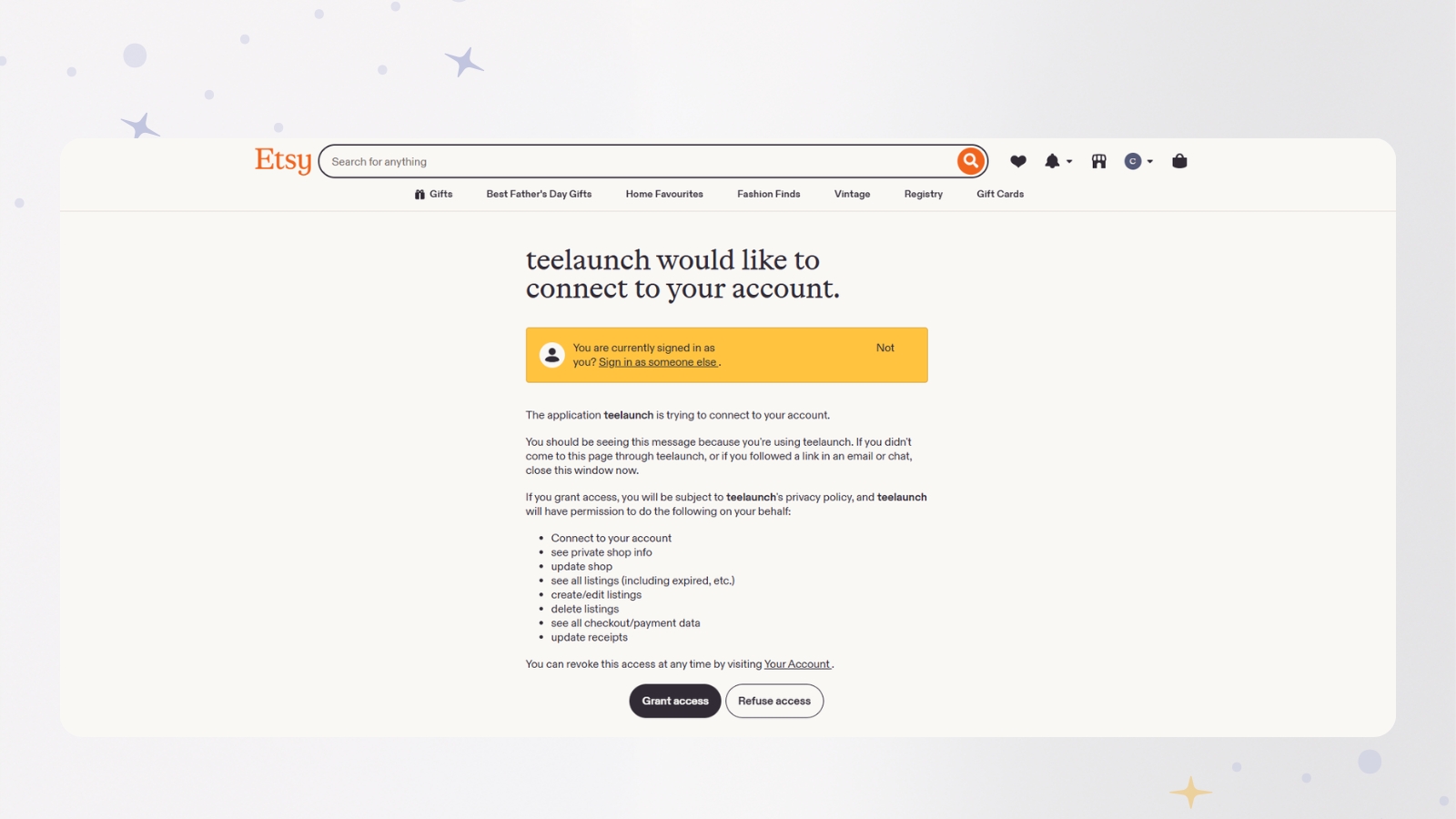
Etsy will open and ask you to authorise teelaunch.
Review the connection request carefully, then approve the connection if you are happy to continue.
Once approved, Etsy should send you back to teelaunch, where the connection process can finish.
Step 6: Check your Etsy shop appears inside teelaunch
After authorising the connection, return to teelaunch and check that your Etsy shop appears in your account.
If your Etsy shop is shown inside teelaunch, the connection has been completed.
At this point, you can start preparing print-on-demand products for your Etsy shop.
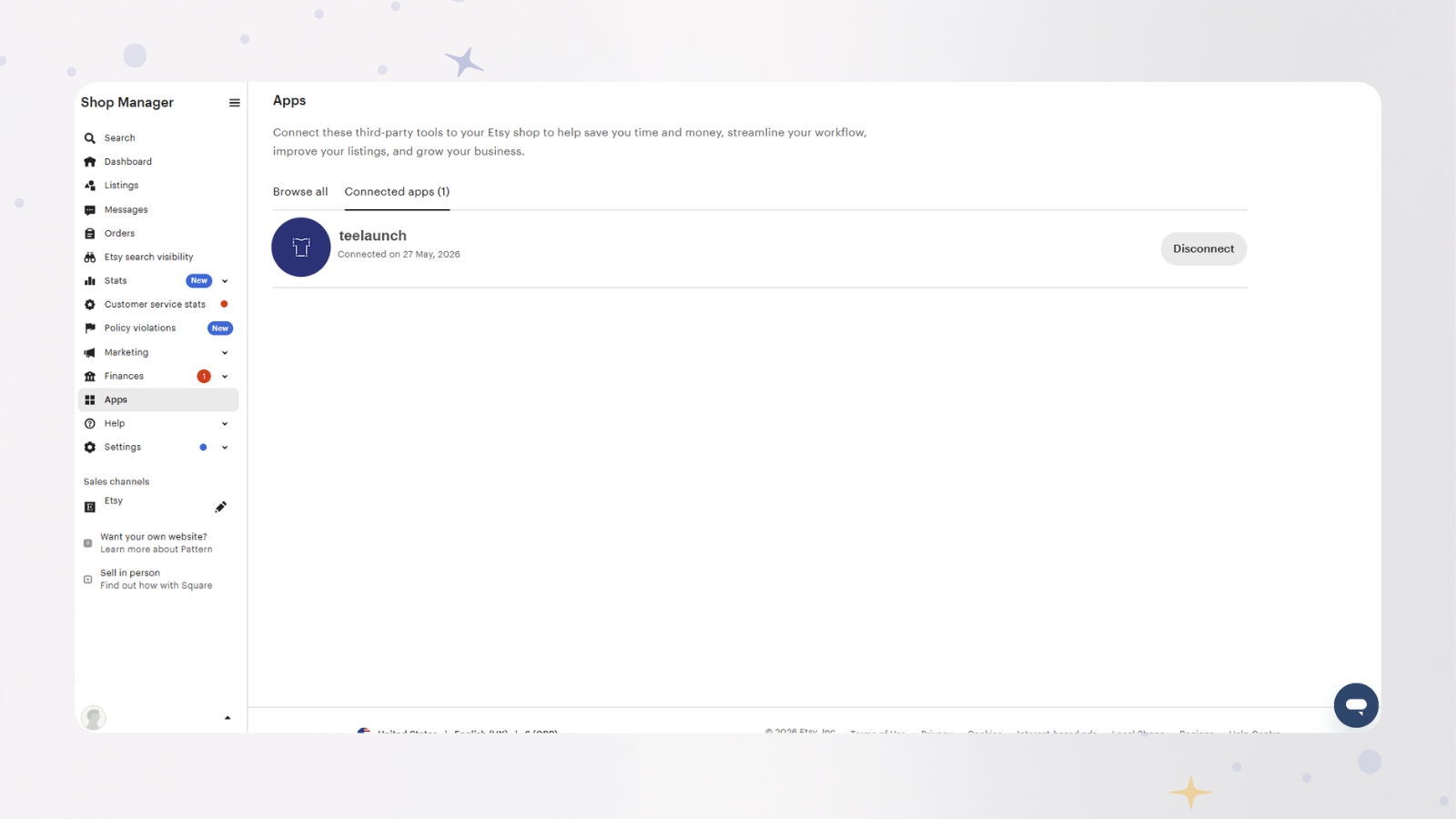
Step 7: Check teelaunch is connected in Etsy Apps
You can also check the connection from inside Etsy.
Go to your Etsy shop manager and open the Apps section. This is where you can view apps and integrations connected to your Etsy shop.
Look for teelaunch in your connected apps. If teelaunch appears there, this is another way to confirm that your Etsy shop and teelaunch account are connected.
Step 8: Create or choose a product in teelaunch
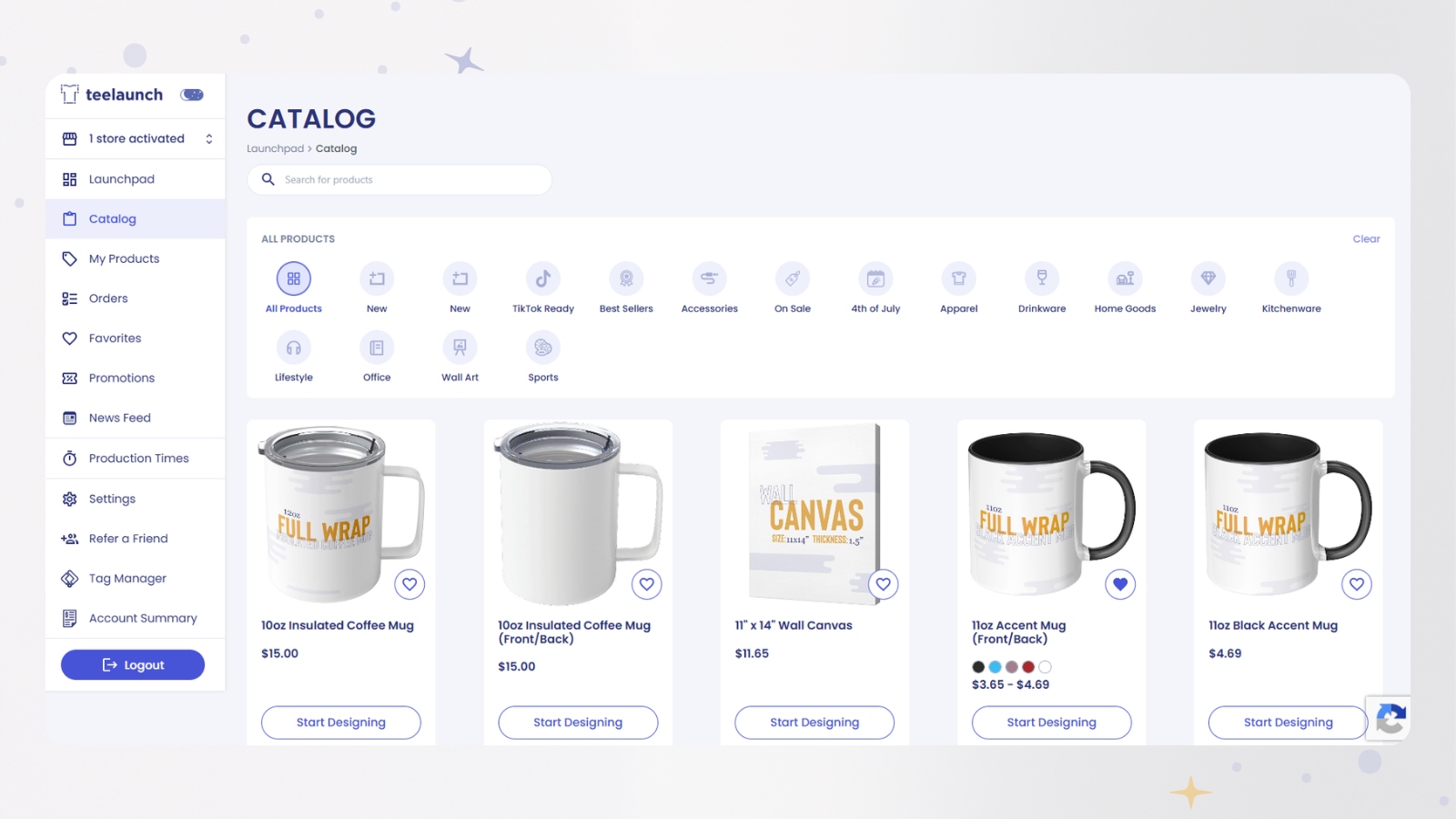
Once your Etsy shop is connected, you can create your first product in teelaunch.
Choose the product you want to sell and add your design. Before sending the product to Etsy, check that everything looks correct.
Review:
- Product type
- Design placement
- Product colours
- Product title
- Product description
- Pricing
- Mockup images
If this is your first print-on-demand product, keep it simple. One strong design on one product is enough to test the process.
Step 9: Send your product to Etsy
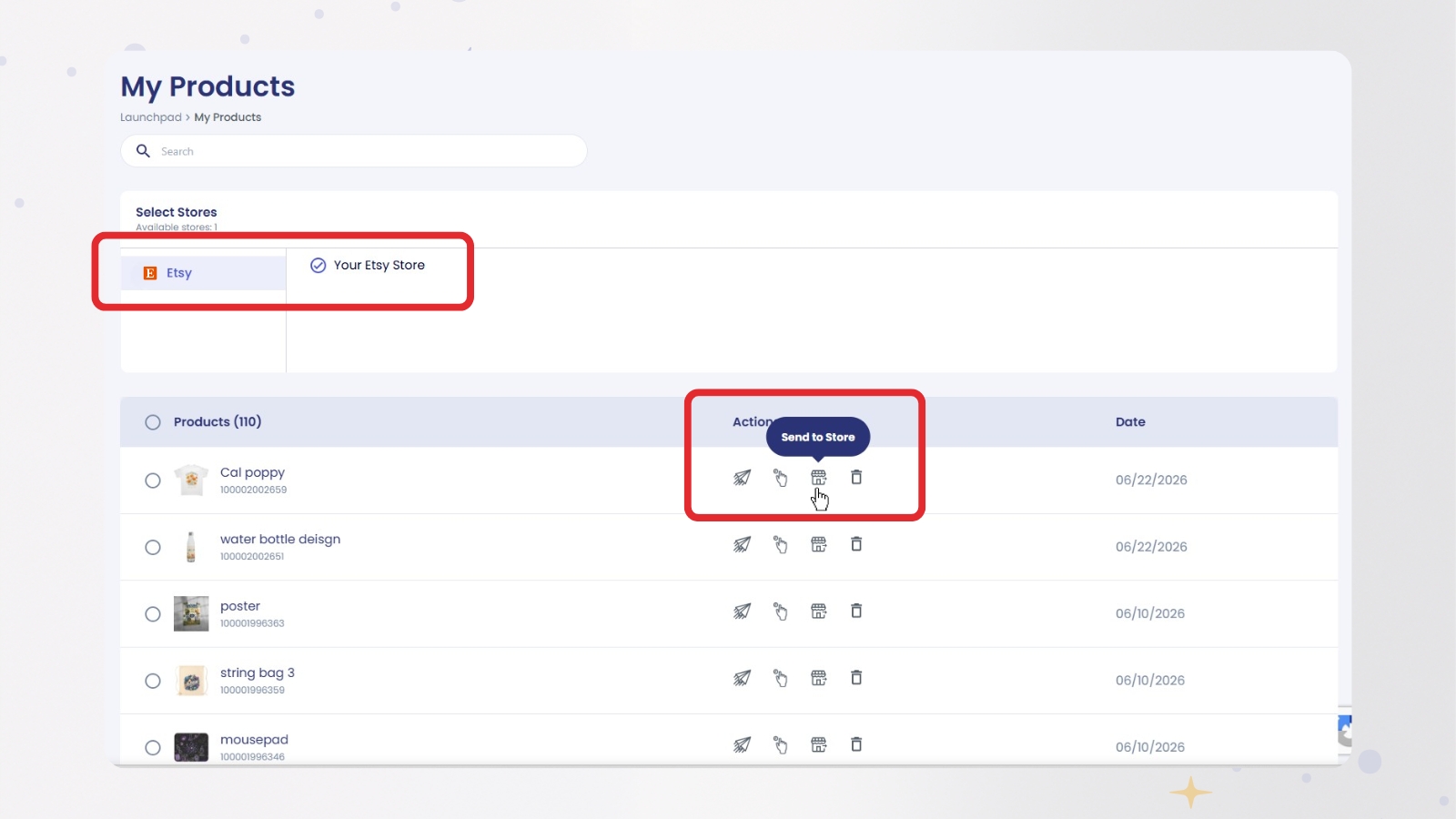
Once your product is ready, send it from teelaunch to your Etsy shop.
After the product has been pushed to Etsy, check your Etsy shop manager to make sure the listing appears correctly.
In many cases, new products may need to be reviewed or edited before they are ready to publish.
Step 10: Check your product in the Listings section of Etsy
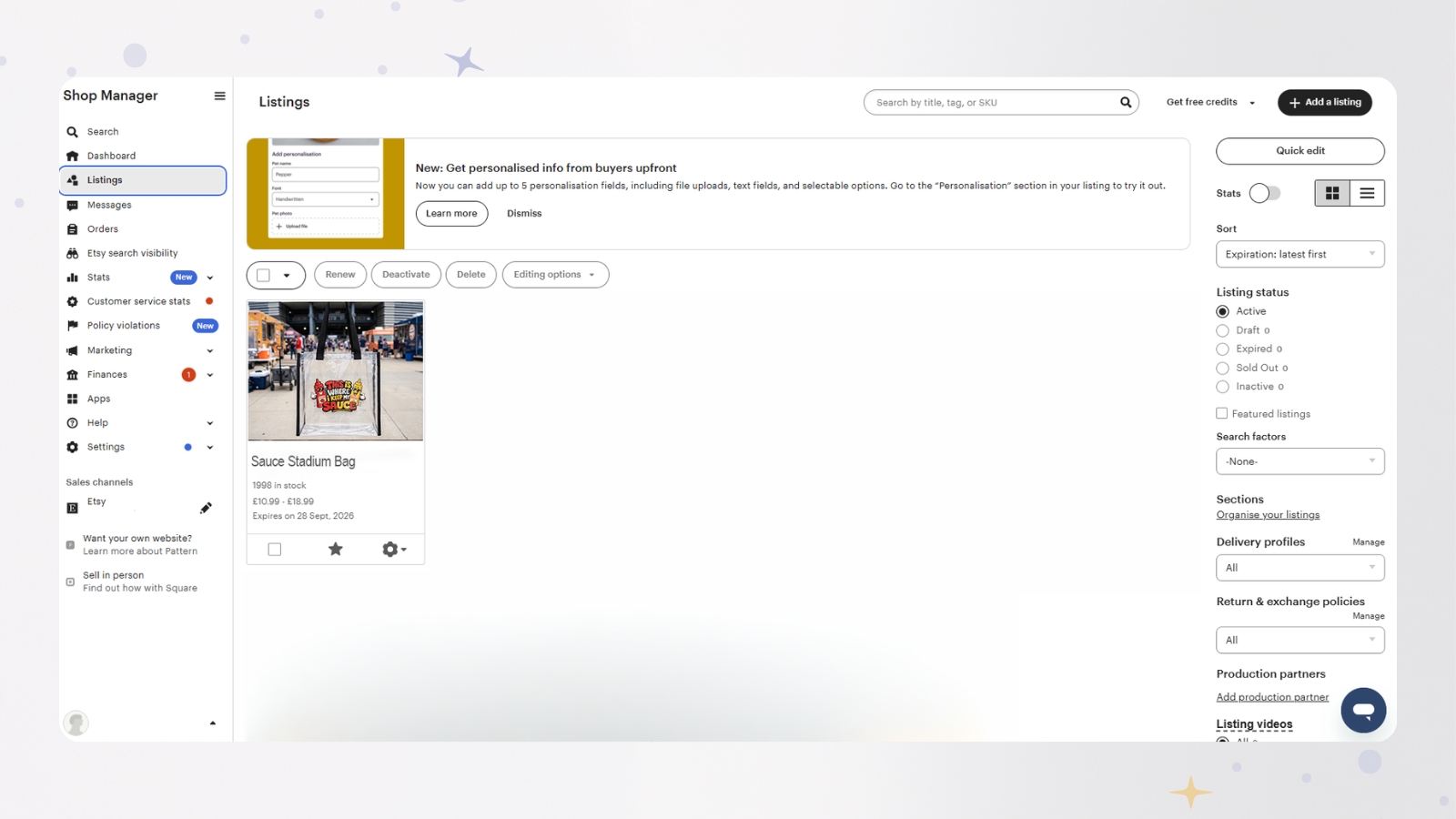
Go to your Etsy shop manager and open the Listings section.
This is where you should see the product you sent from teelaunch. Depending on your setup, the product may appear as a draft listing before it is ready to publish.
Before publishing or promoting your product, review the listing carefully.
Check:
- Product title
- Product description
- Product images
- Variations
- Price
- Shipping profile
- Tags and categories
- Listing status
Make sure the product looks clear, accurate and ready for customers.
What happens after you connect Etsy to teelaunch?
Once Etsy and teelaunch are connected, you can use teelaunch as your print-on-demand supplier for products you want to sell through Etsy.
The basic process is:
- Create your product in teelaunch.
- Send the product to Etsy.
- Review the listing in Etsy.
- Publish the listing when it is ready.
- Customers buy through your Etsy shop.
- The order is produced and fulfilled through teelaunch.
This means you do not need to hold stock or manage printing yourself. You can focus on creating products, improving your listings and promoting your Etsy shop.
Ready to connect Etsy to teelaunch?
Connecting Etsy to teelaunch is the first step towards selling print-on-demand products through your Etsy shop.
Log in to teelaunch, go to Stores, click Add New Store, choose Etsy, authorise the connection through Etsy and check that your shop appears inside teelaunch.
From there you can also confirm the connection inside the Apps section of Etsy, you can create your first product, send it to Etsy and review it in the Listings section before preparing your listing for launch.
Frequently asked questions
Do I need an Etsy shop before connecting Etsy to teelaunch?
Yes. This guide assumes you already have an Etsy shop or are able to complete Etsy’s seller setup process separately.
Is Etsy free to sell on?
No, Etsy is not completely free to sell on. Etsy charges a listing fee when you publish a product, and there are additional fees when you make a sale. Etsy currently lists a $0.20 USD listing fee per listing, and its fee policy also describes transaction and payment processing fees. Check Etsy’s latest seller fee information before pricing your products.
Does Etsy charge a listing fee?
Yes. Etsy charges a listing fee when you publish an item. Etsy’s help centre currently lists this as $0.20 USD per listing, and says the fee applies whether or not the item sells.
Does Etsy take a percentage of each sale?
Yes. Etsy charges a transaction fee when you make a sale. Etsy’s current fee policy lists this as 6.5% of the listing price plus the amount charged for shipping and gift wrapping, where applicable. Payment processing fees may also apply and can vary by country.
Can I use teelaunch to sell print-on-demand products on Etsy?
Yes. Once your Etsy shop is connected to teelaunch, you can create print-on-demand products in teelaunch and prepare them for your Etsy shop.
Do I need to hold stock?
No. With print on demand, products are created when an order is placed. This means you do not need to buy or store inventory upfront.
Can I sell print-on-demand products on Etsy?
Yes, you can sell print-on-demand products on Etsy, as long as your products and listings follow Etsy’s seller policies. If you use a production partner to help make or fulfil your products, make sure your listings are accurate and transparent.

From Thomas, teelaunch’s Chief Vision Officer